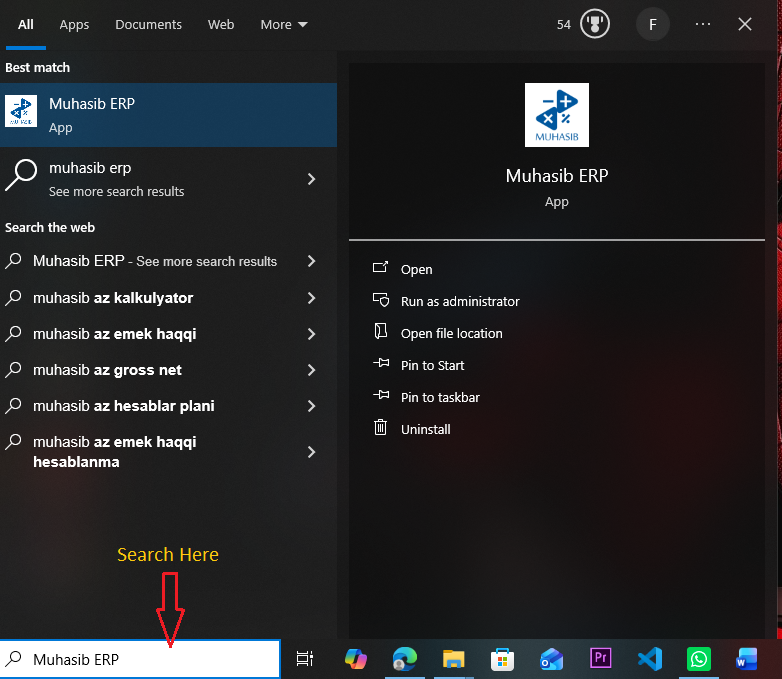
This guide will help you start Muhasib ERP and recognize whether it is proceeding normally or needs database, activation, onboarding, or recovery action.
Startup can create missing default settings and may initialize or migrate database data. A successful set up launch reaches sign-in and then the authorized company workspace.
You need access to Permission to run the installed application. Database or activation administration may be required if first-run setup appears.
Prepare the computer and make sure the set up SQL Server is reachable. Back up the database before the first launch of a newer application build.
Follow the launch, wizard, login, company-selection, Back Office, or power path described in the procedure; the available starting screen depends on current installation state.

Allow the launcher to check the database, initialize required data, evaluate the licence, and load available modules.
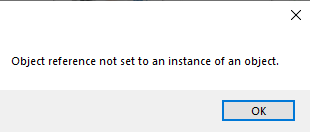
Continue according to the screen that opens:
If an error remains on screen, record its title and message before closing it.
The launcher closes and an expected next screen appears. You should not see a repeating database, activation, initialization, or capacity error.
This guide will help you classify a startup interruption and take a safe recovery action without risking the business database or licence assignment.
If this issue is stopping your work, do not worry. Follow the steps one at a time, and check the result before trying again.
Muhasib advances to the next allowed lifecycle state or preserves the current state for safe diagnosis; the verification section identifies the expected result.
You need access to Use requires the rights and business authority described by the workflow. Database, licence, user, company, or system changes require the responsible administrator.
Record the application version/build if known, database server and database name without credentials, the exact message, and whether this is a new installation, ordinary launch, or upgrade.
Follow the launch, wizard, login, company-selection, Back Office, or power path described in the procedure; the available starting screen depends on current installation state.
Identify the stage that failed:
Check only the dependency named by the error. For example, check network reachability before changing database settings.
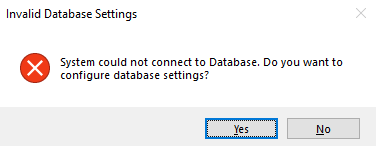
If the error concerns migration, partial database creation, licence transfer, or an unknown data change, stop and contact support.
Provide the installed version, database revision when available, terminal type, and recent change that preceded the failure.
The corrected launch advances past the failed stage and reaches the expected next screen. Make sure the selected company and database are the intended ones.
If the expected result is not shown, stop repeated attempts, check the active database/workspace/user/licence context, preserve the exact message, and follow the related recovery article.
This guide will help you configure this workstation to use an existing approved Muhasib database.
Muhasib stores the selected host, database, authentication mode, and needed credentials in the local workstation settings. On startup it may create missing default settings or apply supported initialization/migration work.
You need access to Access to Database Setup and valid SQL Server. Get the connection details from the database administrator.
Confirm the SQL Server name, database name, authentication method, and whether the database revision is compatible with this Muhasib build. Keep a verified backup before connecting a newer build.
Follow the launch, wizard, login, company-selection, Back Office, or power path described in the procedure; the available starting screen depends on current installation state.
Open Database Setup during first launch or through the approved setup route.
Choose the authentication method:
Select the exact existing Muhasib database. Do not select an empty or unrelated business database.
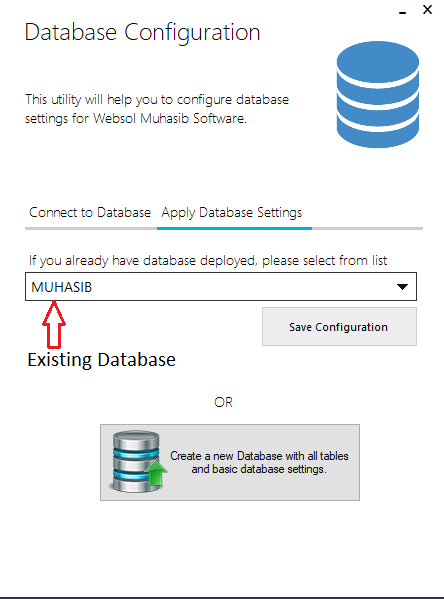
Restart Muhasib and confirm that it reconnects to the same database and shows the expected company or sign-in context.
This guide will help you create a new empty Muhasib database for a new workspace on an approved SQL Server.
The available build creates the fixed database name MUHASIB, applies its base script in batches, and saves the new connection in local workstation settings. Creation changes SQL Server state and may leave a partial database if interrupted; verified rollback behavior is still required.
You need access to Database-creation rights on a non-production or approved SQL Server. This procedure must not be used to repair or replace an existing company database.
Make sure a database named MUHASIB does not already contain required data. Understand the organization's backup, server naming, collation, security, and recovery policies.
Follow the launch, wizard, login, company-selection, Back Office, or power path described in the procedure; the available starting screen depends on current installation state.
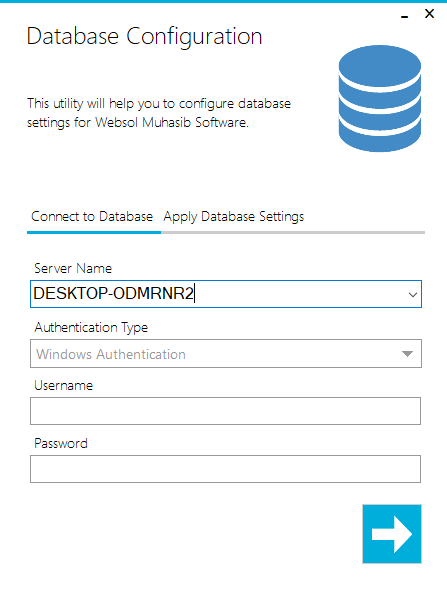
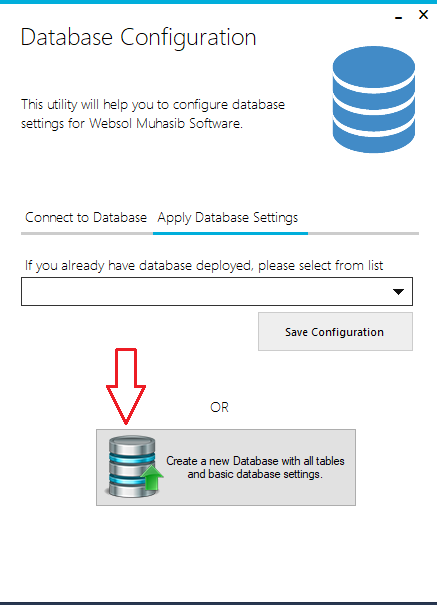
Allow Muhasib to create MUHASIB and execute its embedded base database script.
Do not close the application or interrupt SQL Server while creation is in progress.
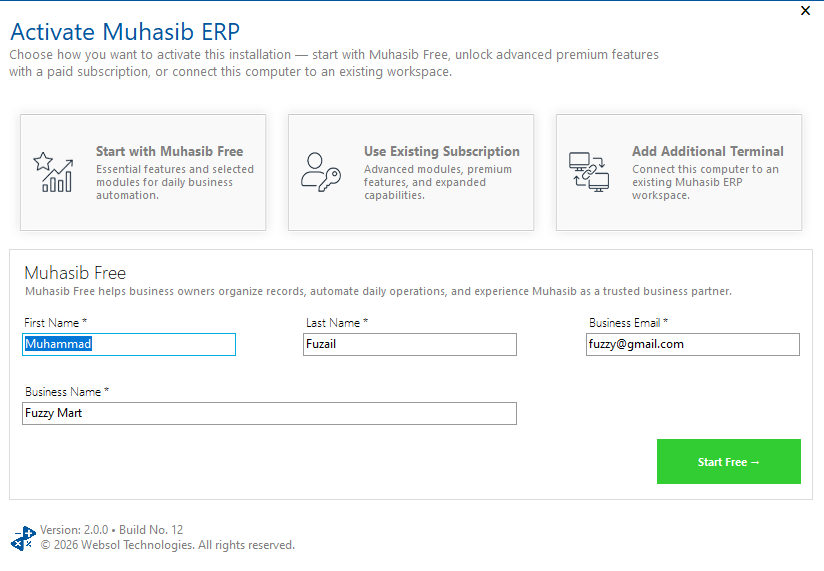
Make sure Muhasib reconnects successfully, recognizes the expected database revision, and opens activation or onboarding. A database existing in SQL Server is not enough proof; the application must initialize it successfully.
MUHASIB already exists, do not overwrite or remove it. Confirm its owner and purpose.