
Prepare a Computer to Run Muhasib ERP
How to Prepare a Computer to Run Muhasib ERP in Muhasib ERP
Overview
This guide will help you have a Windows computer, SQL Server connection, and deployment information ready before launching Muhasib ERP.
The first launch may ask for database settings, activation, company onboarding, or sign-in depending on the workstation and database state. Startup can also initialize settings or apply database updates, so do not test an unfamiliar build against the only copy of production data.
Who can do this
You need access to Windows and SQL Server installation or settings may require a local administrator and a database administrator. Muhasib permissions are not required before first launch.
Before you start
Get the approved Muhasib installer or executable, the target company deployment model, and one of these database options:
- an existing Muhasib database with its SQL Server name and approved authentication method; or
- authorization and SQL Server rights to create a new Muhasib database.
For subscription activation, have access to the appropriate Websol Portal account. An more terminal also requires information from the primary workspace's pairing workflow.
Where to find it
Preparation happens outside and before Muhasib; use Windows, SQL Server administration, and the approved deployment package, then launch the Muhasib executable.
Prepare a Computer to Run Muhasib ERP
System Requirements
The following requirements apply to the Windows desktop edition of Muhasib ERP v1.0.0.
Workstation Requirements
| Component | Minimum Requirements | Recommended Requirements |
|---|---|---|
| Operating System | Windows 10, 64-bit | Windows 11 Pro, 64-bit |
| Processor | Dual-core, 2.0 GHz | Intel Core i3/i5 or AMD Ryzen 3/5 |
| Memory | 4 GB RAM | 8 GB RAM or more |
| Storage | 10 GB available space | 20 GB or more on SSD |
| Display | 1366 × 768 resolution | 1920 × 1080 resolution |
| Network | 100 Mbps LAN or stable Wi-Fi | Gigabit wired LAN |
| Internet | Required for activation and online services | Stable broadband connection |
| Architecture | x64 Windows computer | x64 Windows computer |
Muhasib ERP uses Microsoft .NET Framework 4.8. Windows 11 includes a compatible .NET Framework version, while supported Windows versions can install .NET Framework 4.8 separately.
Database Server Requirements
For multi-terminal environments, a dedicated computer should host the Muhasib ERP database.
| Component | Small Deployment | Recommended Deployment |
|---|---|---|
| Users/Terminals | Up to 5 terminals | More than 5 terminals |
| Operating System | Windows 10/11 Pro, 64-bit | Windows Server 2022 or later |
| Processor | 4-core processor | Intel Core i5/i7, Xeon, or AMD equivalent |
| Memory | 8 GB RAM | 16 GB RAM or more |
| Storage | 50 GB SSD | 100 GB or more on NVMe/SSD |
| Database | SQL Server Express Download Microsoft SQL Server 2016 |
SQL Server Standard for larger installations Download Microsoft SQL Server 2016 |
| Network | 100 Mbps LAN | Gigabit wired LAN |
| Backup Storage | External or secondary drive | Dedicated local and off-site backup storage |
Microsoft SQL Server requires additional storage for installation files, database files, transaction logs, temporary files, and backups. Reserve at least 6 GB of available space for the SQL Server installation itself, in addition to the storage required for Muhasib ERP databases and backups.
Recommended Database Platform
- Microsoft SQL Server 2016 Express for small and medium installations.
- Microsoft SQL Server Standard for high transaction volumes, larger databases, or larger numbers of concurrent users.
- SQL Server Management Studio for database administration and maintenance.
- Automated daily database backups.
Required Software Components
The Muhasib ERP installer or implementation package should install, provide, or verify the following components:
- Microsoft .NET Framework 4.8 or a compatible later version.
- Microsoft SQL Server Database Engine.
- Microsoft Entity Framework runtime components.
- Microsoft ReportViewer runtime.
- Required Muhasib ERP and Websol libraries.
- Appropriate Windows printer drivers.
- Latest applicable Windows security and reliability updates.
Administrator access may be required during application installation, database configuration, firewall configuration, Windows service setup, and printer installation.
Network Requirements
For a multi-terminal deployment:
- All Muhasib ERP terminals must be connected to the same reliable local network.
- A wired Ethernet connection is recommended for the database server and primary business terminals.
- The database server should use a fixed IP address or a consistently resolvable computer name.
- SQL Server TCP/IP connectivity must be enabled.
- The configured SQL Server port must be allowed through Windows Firewall.
- Network discovery and communication between the server and terminals must be available.
- Wireless connections should not be used for the primary database server.
Internet access is required for software activation, periodic licence validation, updates, tax integrations, SMS services, and other online features.
Core local operations may continue temporarily during an internet interruption, subject to the applicable licence, offline-use limits, enabled services, and system configuration.
Optional Hardware
Depending on the enabled Muhasib ERP modules and business requirements, the following devices may be used:
- 58 mm or 80 mm thermal receipt printer.
- A4 laser or inkjet printer.
- USB barcode scanner.
- Barcode or product label printer.
- Cash drawer connected through the receipt printer.
- Customer-facing display.
- Touchscreen terminal.
- Electronic weighing scale, where supported.
- UPS for the database server and client terminals.
- External drive or network storage for backups.
All peripheral devices must have compatible Windows drivers and should be tested before production deployment.
Microsoft Excel Requirement
Microsoft Excel 2013 or later is required only for reports and functions that export information directly through Microsoft Excel.
Normal Muhasib ERP operations and standard report viewing do not require Microsoft Office.
Standalone Installation
For a single-computer installation, the Muhasib ERP application and SQL Server database may be installed on the same computer.
Recommended Standalone Configuration
- Windows 11 Pro, 64-bit.
- Intel Core i3 or AMD Ryzen 3 processor or better.
- 8 GB RAM.
- 256 GB SSD.
- At least 20 GB available storage.
- Stable internet connection.
- UPS or reliable power backup.
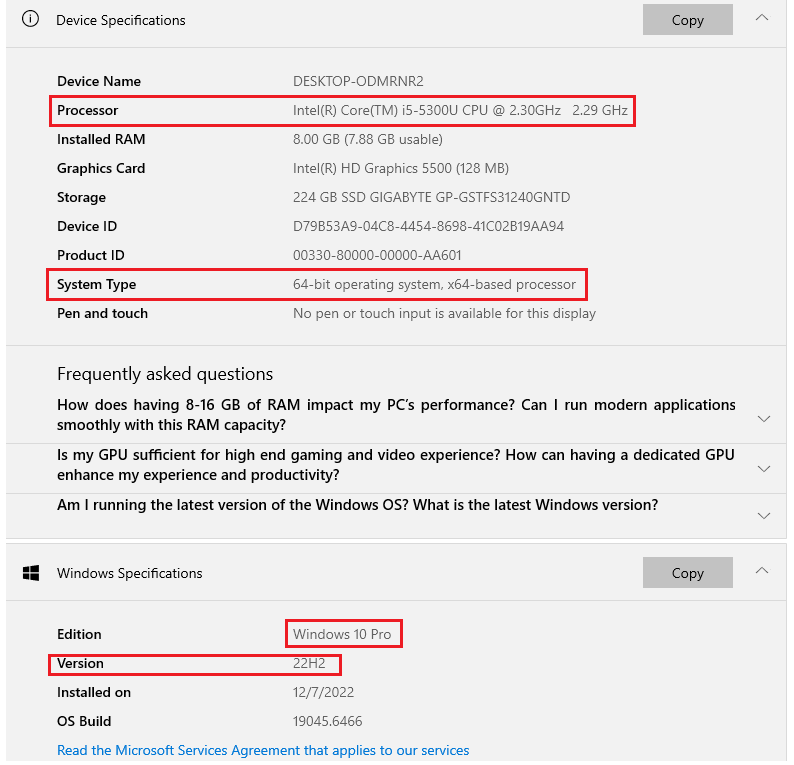
Step 1: Confirm that the computer runs an officially supported version of
Make sure the computer runs an officially supported version of Windows.
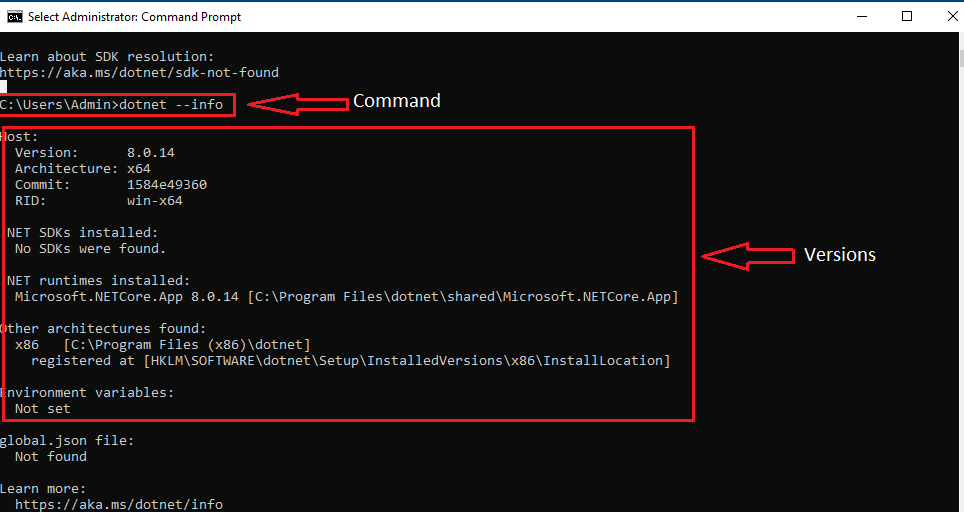
Step 2: Confirm that the supplied Muhasib release and required .NET runtime
Make sure the supplied Muhasib release and required.NET system are installed.
Step 3: Verify network access to the SQL Server that hosts the Muhasib database
Step 4: Obtain either Windows-integrated database access or a dedicated SQL login.
Get either Windows-integrated database access or a dedicated SQL login. Do not share credentials in screenshots or support messages.
Step 5: Confirm whether this computer will be the primary terminal or
Confirm whether this computer will be the primary terminal or an more terminal.
Step 6: Identify the company, location, Windows printer, and Muhasib user role
Identify the company, location, Windows printer, and Muhasib user role intended for this computer.
Step 7: If you will print receipts, invoices, or labels, install and
If you will print receipts, invoices, or labels, install and test the Windows printer first.
Step 8: Ensure a current database backup exists before connecting an older
Make sure a current database backup exists before connecting an older database to a newer Muhasib build.
Step 9: For a shared computer, decide whether remembered sign-in credentials are
Check your work
You should be able to identify the executable, database server, authentication method, activation path, intended terminal type, and responsible administrator without guessing.
If something goes wrong
- If the SQL Server or credentials are unknown, stop and contact the database administrator.
- If this is an upgrade, confirm the supported upgrade path and backup before launching.
- If activation ownership is unclear, do not transfer primary access; contact the subscription owner.
Related guides
- Launch Muhasib ERP
- Connect Muhasib ERP to an Existing Database
- Create a New Muhasib Database
- Choose the Correct Muhasib Activation Path
- Sign In to Muhasib ERP